



 Cyber Awareness Training
















“If the only tool you have is a hammer, it’s hard to eat spaghetti,” wrote David Allen in his book, Getting Things Done.
You might chuckle—or not—but the point stands: using the right tools matters. For most businesses, computers are one of those critical tools. But not all devices are built the same, especially when it comes to business needs.
Below, we break down the key differences between retail (consumer) IT devices and business-grade laptops and hardware, and why choosing the right gear is a long-term win.
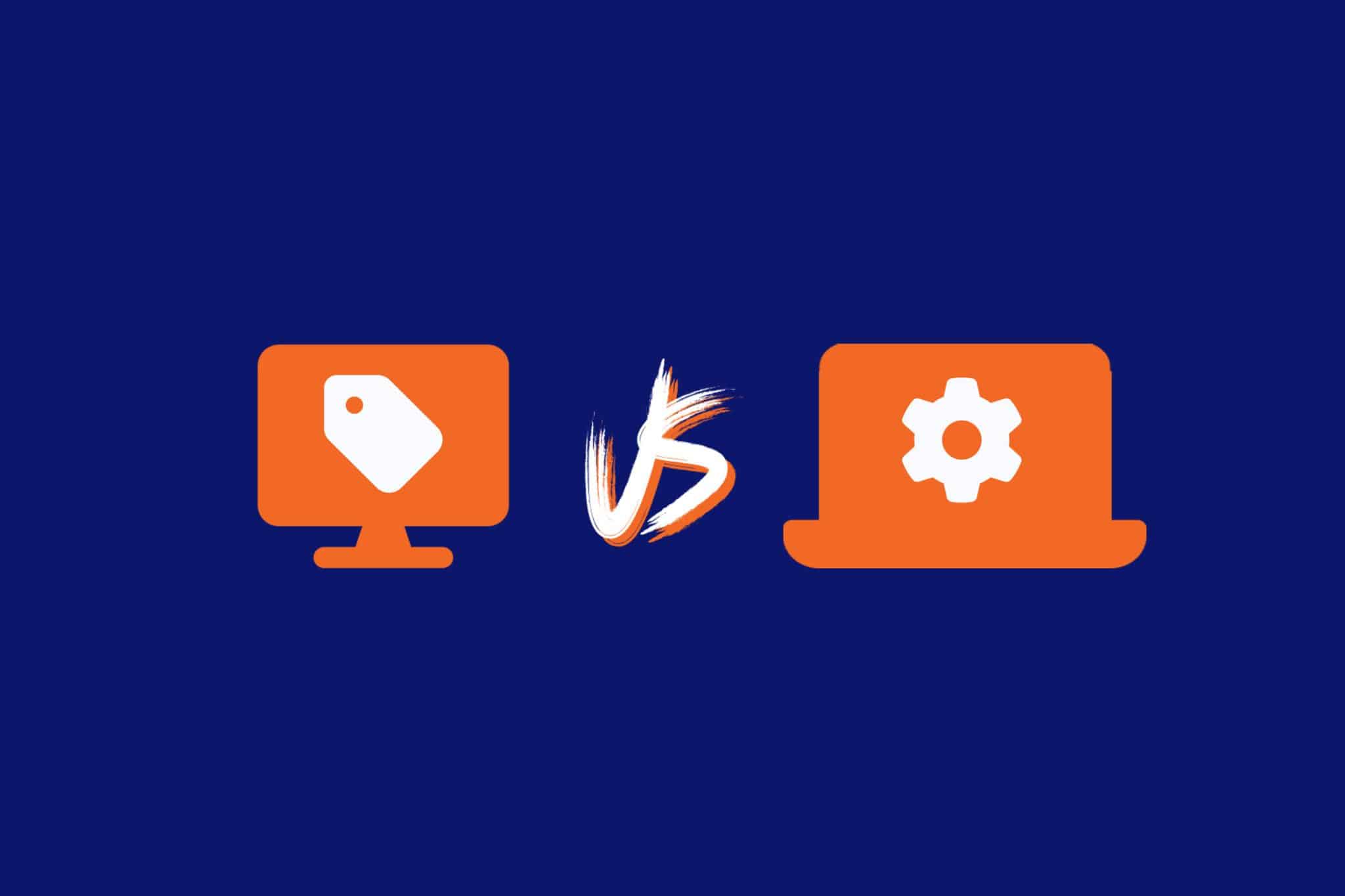
The difference between retail & business-grade devices
Most businesses rely on a mix of devices, including desktops, laptops, routers, printers and scanners. Some might even run their own servers, switches or multi-function hubs.
These days, many teams are also using wearables and other smart IoT gadgets. Let’s take a closer look at how retail devices stack up against business‑grade hardware.
| Features | Retail/Consumer Devices | Business-Grade Devices |
| Intended use | Personal or general tasks | Designed for business environments and multi-tasking |
| Design & finish | Flashy, Stylish | Understated, professional, built to last |
| Performance & reliability | Average specs, shorter lifespan | Faster processors, more RAM, built for daily heavy use |
| Security features | Basic protection | Enhanced features like biometric login and strong encryption |
| Expendability & configurability | Limited | Modular, easier to customize and scale |
| Warranties & support | Short, basic coverage | Extended warranties and priority business support |
| Price consideration | Standard | Higher initial investment, but better cost over time |
What’s changed in 2025?
1. Durability and battery life
Today’s business-grade laptops aren’t just faster. They last longer. For instance, business laptops now average between 12 to 15 hours of battery life, with some models reaching up to 21 hours in real-world testing .
These devices are engineered for longevity, featuring robust materials and undergoing rigorous MIL-STD-810H testing to withstand drops, spills, and extreme conditions.
2. Security and remote management
The latest business-grade laptops come with TPM chips, biometric login and long-term update support. They’re carefully designed to enhance protection against quickly evolving cyber threats.
For your business, that means data stays safe, your team can log in quickly and securely, and IT spends less time fixing avoidable problems. Basically, fewer interruptions, less stress, smoother operations and better peace of mind.
3. Edge computing and hybrid models
With more businesses using a mix of cloud and local computing, modern business laptops are built to handle it all. As an example, they can switch seamlessly between local processing and the cloud, keeping all your applications fast and responsive.
That means your business gains faster response times, less lag and reliable performance for modern workloads. This helps your teams stay productive no matter where they’re working.
4. Smarter managed devices
Managed devices today do so much more than just run. They actively monitor performance, prevent issues and keep your business systems performing at their best.
With AI-driven monitoring, proactive updates and continuous optimisation, these devices catch small problems before they turn into costly disruptions. They don’t just sit there anymore. Now they learn, adapt, and help your business stay ahead of potential slowdowns or interruptions.
For your team, that means instead of spending time troubleshooting or dealing with unexpected downtime, your people can focus on the work that drives your business forward.
When business-grade devices make sense
If your team relies on laptops, desktops or other devices for daily business, investing in business-grade hardware really pays off. Here’s why it’s worth considering:
- Long-term value: These new devices in 2025 are built to last, backed by stronger warranties and designed to avoid unexpected breakdowns. This helps you avoid costly surprises.
- Stronger security: Built-in features like encryption and biometric logins protect your sensitive data and reduce risks.
- Better support and flexibility: They’re significantly easier to configure, scale, repair and upgrade as your business grows.
- Reliable performance: Because they’re designed for business workflows, they can handle demanding applications and software without slowing your team down.
Getting the most value when buying IT hardware
Buying new devices for your business doesn’t have to be complicated. But it does pay to be thoughtful. So, what’s the key? Involve your IT team or Managed IT Service Provider (MSP) from the start.
Start by figuring out what your team really needs. Talk to the people who will actually be using the devices. Think about things like: what kind of work do they do every day? Which applications are essential? Are there any must-have features or bonus features?
Next, narrow down the hardware options. Look at specs, configurations, and compatibility with your current systems. Talk to your IT team for advice. They can point you to devices that are reliable, perform well, and give the best value over time.
Finally, don’t rush the purchase. Compare warranties, support options, and vendor reliability. The goal is to make a decision that suits your team now and scales with your business over time.
Get the right tools with the right IT partner
The right devices can make a big difference to how smoothly your business runs. With an IT services provider, you don’t have to wade through endless options. They’ll compare what’s out there, use vendor ties to get you better pricing, and guide you toward a smart long-term investment.
Beyond the purchase, they can also handle installation, deployment, and ongoing maintenance, saving your team valuable time. And if you’d like a broader review of your IT environment and managed IT support, they can guide you there too.
At ADITS, we combine experience with a proven procurement process to make IT simple and effective. Whether you’re in Brisbane, Townsville or anywhere in between, we’re here to help. Get in touch today and let’s find the right tools for your business.