4 Key Benefits of Cloud Backup for Healthcare You Can’t Ignore

In April 2024, MediSecure, an Australian electronic prescription provider, experienced a significant ransomware attack that compromised the personal data of approximately 12.9 million Australians

The stolen data included sensitive information such as full names, phone numbers, addresses, Medicare numbers and prescription details. 

This breach offers a stark reminder of just how vulnerable healthcare IT systems can be. With patient data on the line, having a reliable cloud backup for healthcare in place has never been more critical. This is why it’s vital for healthcare providers to understand the full benefits of club backups.

Why cloud backup matters

Cloud backup for healthcare is much more than a safety net. It’s an absolutely necessary part of any healthcare organisation’s cyber security strategy. They help prevent the kind of large-scale data loss seen in breaches like MediSecure by keeping sensitive patient information secure and accessible.

Beyond security, reliable cloud backups mean healthcare providers can access the data they need. And when they need it. For instance, the Australian Digital Health Agency notes that 80% of health consumers expect innovative digital tools to enhance their care, and having data at your fingertips is a big part of delivering that experience.

Despite this, some practices still rely on local servers or physical backups, which are far more vulnerable to unexpected events. And while Microsoft 365 offers built-in backup features, they don’t cover everything—as we explore in our article, Why Microsoft 365’s Built-In Backup Isn’t Enough.

In short, cloud backups for healthcare have become standard for a reason. Here are four ways they can transform the way your practice protects and manages patient data:

  1. Better patient care, every time

‘Good collection and use of health data leads to better health care,’ says the Department of Health and Aged Care. And it’s easy to see why. When a doctor can’t access a patient’s full medical history because of a server outage or other technology disruption, care can be delayed or even compromised.

While on-premise servers are still important for running critical applications, pairing them with cloud backups takes your data security—and patient care—to the next level.

For example, with cloud backups, healthcare professionals can securely store patient records and gain 24/7 access to them from anywhere with an internet connection.

That means doctors and nurses can access the information they need instantly, even during unexpected events. 

So how do cloud backups actually improve patient care? By giving healthcare teams faster, reliable access to records, they can diagnose sooner, plan treatments more efficiently, and deliver better outcomes for every patient.

 2. Faster recovery and minimal downtime

No IT system is completely immune to surprises. Whether it’s a power outage, a natural disaster or a cyberattack, the unexpected can hit when we least expect. 

Imagine a cyclone, for example, hitting and taking your practice’s servers offline. In an unanticipated event like this, how quickly could you access patient records and get back to caring for patients?

Downtime in healthcare is a lot more than a mere convenience. It can affect patient safety and cost your practice thousands for every minute offline. The longer the disruption, the bigger the impact. Basically, the longer the disruption, the bigger the impact. 

And that’s where cloud backups make a real difference. With data stored securely off-site, you can recover quickly and keep your practice running smoothly. 

The Australian Government advises healthcare providers that ‘having a recent backup of your data will help you to recover more quickly,’ reinforcing why offsite solutions are essential for continuity of care.

 3. Stay compliant and protect patient data

Patient data is incredibly sensitive. And the healthcare sector is under constant pressure to meet strict regulations. 

The World Economic Forum stresses that ‘stringent rules and regulations must be put in place to secure sensitive patient data,’ and cloud backups can be a huge help in staying compliant.

Here’s how they support your obligations:

  • Data Security: Australian Privacy Principle (APP) 11 requires healthcare providers to protect patient data from unauthorised access, loss or disclosure. Cloud backups use strong encryption to keep information safe. Even if a breach occurs, the data is unreadable. 
  • Access Controls: APP 1.3 mandates control over who can access personal information. Cloud solutions let you set precise permissions. That way, only authorised staff can view or edit patient records. 
  • My Health Record Integration: Cloud backups work seamlessly with My Health Record, ensuring that patient data stays secure while being shared safely between providers.

With cloud backups in place, you can confidently deliver care, knowing your patients’ information is protected and your practice is meeting its compliance obligations.

  4. Easy scalability and smarter cost management

As your practice grows, so does your data. And traditional on-site servers can quickly become a bottleneck. Upgrading means expensive hardware, potential compatibility headaches and frustrating downtime. 

Cloud backup for healthcare takes all that off your plate. They scale effortlessly as your needs increase, so you’re not constantly investing in new servers or worrying about running out of space.

Beyond convenience, cloud solutions are also cost-smart. McKinsey & Company reports that moving to the cloud can reduce IT costs by 30–40%, freeing up resources that can be better spent on patient care and other priorities.

Protect your patients and your practice with reliable cloud backups

In healthcare, every second counts, and so does every byte of data. With cyber threats on the rise, safeguarding patient records is no longer optional. Cloud backup solutions give you peace of mind, secure access to critical information, and the ability to recover quickly from any unexpected event.

At ADITS, we help healthcare providers across Brisbane, Townsville, and Queensland implement tailored backup strategies that fit your practice’s needs. From compliance and security to cost-effective scalability, we make it simple to protect your data and keep your day-to-day operations running on track.

So let’s make sure your practice is prepared for anything. Reach out today to see how ADITS can help secure your patient data and streamline your IT.


Why Microsoft 365’s Built-in Backup Isn’t Enough

The importance of data backup cannot be overstated. Ask yourself what would become of your business if you were to lose critical information?

Not only do accidental deletions, hardware failures, or cyberattacks result in business disruption, but they can also damage your reputation, and lead to unexpected financial costs. In Australia alone, the average cost of a data breach has increased by 32% in the last five years.

If you’re enjoying the benefits of Microsoft 365, you might think your business is safe thanks to the built-in backup feature. Unfortunately, even the tech giant acknowledges that it cannot guarantee the security of data stored in its cloud services.

Moreover, there are known vulnerabilities and emerging threats specifically targeting Microsoft SharePoint, a widely used component of Microsoft 365. Recent reports have highlighted security flaws in SharePoint that are being actively exploited by malicious actors, posing significant risks to organisations relying on this platform.

These limitations underscore the need for robust, multi-layered backup solutions that go beyond the built-in options provided by Microsoft 365.


Microsoft 365’s Built-In Backup Features Work

Microsoft 365’s backup features can work with small, individual files. They’re better suited for short-term recovery needs, such as accidental deletions or edits of a project or document. This means that while Microsoft ensures that it won’t lose your data, it does not make any guarantees about restoring data if you do. Let’s dive into some of these backup features.

File History

This enables you to back up specific folders on your local device and allows you to restore previous versions of files in case of accidental deletion or modifications.

However, File History only protects what’s in designated folders on your local device. It doesn’t cover your entire Microsoft 365 environment, which might include emails, shared documents, or data from other applications.

It also has limited functionality. It does not create system image backups for a full system restore, which is crucial for recovering from major system crashes.

Moreover, backups are stored on your local device, which can fill up quickly and become vulnerable if your device suffers a hardware failure. If your local drive fails, you lose both your original data and the backup.

OneDrive Versioning

This feature keeps track of previous versions of files stored in your OneDrive account. It’s useful for reverting to an earlier document draft. However, version history only goes back a certain period, as defined by Microsoft. If you need to recover a file from months ago, this feature won’t be able to help.

There are also security concerns. Microsoft emphasises data protection within their cloud storage, but a successful breach or sophisticated ransomware attack could still compromise your OneDrive backups. Keep in mind that cloud security is a shared responsibility, according to Microsoft – you will always be responsible for your data, endpoints, account, and access management.

Retention Policies

Retention policies can automatically archive or delete older data based on set rules, but they are not true backup solutions. They don’t create a separate copy of your data, and deleted items might be permanently unrecoverable after a specific timeframe. Accidental deletions or data breaches could still result in permanent data loss.

Litigation Hold

This helps preserve emails, even deleted ones, for a set period. It temporarily safeguards specific user mailboxes or data sets during legal proceedings.

Recycle Bins

Recycle bins are not really meant for backups but can be a safety net for recently deleted emails, documents, and other files. You can recover items accidentally trashed, but only within a specific timeframe (typically 30 to 90 days).


Explore Beyond Microsoft 365 Backup Features

An independent, third-party, backup solution is the best way to protection organisations against the most common data loss pitfalls and Microsoft’s limited native recovery capabilities.

Here are our thoughts on why we think a combined effort is the way to go.

  • Flexible retention: Third-party backup solutions often provide significantly longer retention periods compared to Microsoft 365’s built-in options. This means you can keep your data for years, ensuring that you have access to historical information whenever needed. This is particularly important for businesses that need to comply with long-term data retention policies.
  • Granular recovery: One of the standout features of third-party backup solutions is the ability to perform granular recovery. This means you can restore specific items, such as individual emails, files, or even specific versions of documents, without having to recover entire mailboxes or sites. This level of precision can save time and reduce disruption during the recovery process.
  • Automatic and Continuous: Backups run automatically and continuously. You don’t need to remember to manually back up your data because automatic backups are scheduled at regular intervals to ensure continuous protection. Some solutions can capture changes to your data as they happen, so you’re always covered, even for accidental deletions or edits made just moments before.
  • Enhanced Security: Cloud backup providers offer advanced security features.
    • Encryption: Data is encrypted both in transit (between your devices and the cloud) and at rest (within the cloud) using industry-standard encryption protocols.
    • Access Controls: You can define who can access your backups and what level of access they have, ensuring only authorised users can view or restore data.
    • Additional Features: Cloud backup solutions may offer features like multi-factor authentication (MFA) and anomaly detection for further security enhancements.
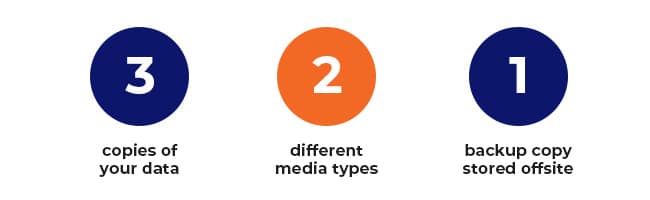
  • Attuned with 3-2-1: A cloud-based backup aligns with the 3-2-1 backup rule. This helps optimise data security, with 3 copies of your data on 2 different media types, with at least 1 offsite or cloud copy.


Embrace a Proactive Approach to Your Backup Strategy

Data security is a cornerstone of business resilience. It is important to understand the criticality of your data to find the backup solution adapted to your needs.

Don’t wait for a data loss incident to uncover the gaps in your current backup strategy. Whether you’re in Brisbane, Townsville, or anywhere across Queensland, take proactive steps now to safeguard your business’s most valuable asset—its data. Investing in a robust, multi-layered backup solution is not just a precaution; it’s a strategic move to ensure business continuity and peace of mind.

LET’S CHAT

Your Easy Guide to the 3-2-1 Cloud Backup Strategy

If you’ve ever experienced a fire or destructive flooding or a burglary, you know the importance of protecting your vital documents.

In running your business, you keep essential business documents in a fireproof safe or in a locked cabinet. Likewise, you must keep your business data well protected, and data backups are crucial to this.

Why back up your data?

A data backup is defined as “a digital copy of your important data.” Data backups are necessary for business, especially small and medium-sized businesses (SMBs), which are likely cyberattack targets. Data backups are a must so you can:

shield

Prevent data loss

This can happen due to hardware failure, software corruption, or cyberattacks. A backup is your insurance in case something happens to your original data.

disaster-recovery

Recover from cyberattacks

Cyberattacks can be devastating for any business. In such a case, a backup can reduce your downtime. You can restore your data and normalise your operations faster.

lawyer

Meet compliance requirements

There are data protection regulations for businesses to comply with. Doing backups can demonstrate compliance, such as aligning with The Essential 8 baseline security measures.

cyber-security-service

Protect your business reputation

Losing your customers’ data can lead to loss of trust in your business. Backups can help protect your business reputation by ensuring that your customers’ data is safe.

piggy-bank

Minimise costs

If you lose your data, you may have to pay to recover it or rebuild it. A data backup can save you money by preventing a total data loss.

handshake

Gain peace of mind

Having backups lessens your worries. You can focus better on running your business rather than having doubts about the safety of your data.

What backup methods can you use?

Some common methods for backing up your business data are:

On-site backup

This involves backing up your data to a storage device, such as an external hard drive or a network-attached storage (NAS) device (linked to your local network). On-site backups are easy to set up and maintain.

Off-site and cloud backups

This means backing up to a device in a remote location or via a cloud storage service. Cloud and off-site backups are less vulnerable to local disasters, such as fire or theft. Cloud backups have the advantage of being accessible from anywhere.

Hybrid backup

This involves backing up your data to an on-site device and then copying that data to an off-site location. Hybrid backups offer the best of both worlds: they are easy to set up and maintain like on-site backups, and they are as secure as off-site backups.

The best backup method for your business will depend on your specific needs, budget, and technical skills. If you want a highly secure strategy, you could consider the 3-2-1 backup solution.

What is the 3-2-1 backup strategy?

The 3-2-1 data backup is similar to keeping a spare house key under the doormat and another with a trusted neighbour. It’s called “3-2-1” because:

  • 3: You must have at least three copies of your data (including the original).
  • 2: You must use at least two different media types for storage.
  • 1: You must have one backup copy in the cloud or offsite.

While no foolproof backup method exists, the 3-2-1 system works well because it decreases the chance of total data loss and multiplies your protection. It is also easy to implement even for small businesses.

How to do a 3-2-1 Cloud Backup

How to do a 3-2-1 Cloud Backup

Here are the steps to doing a 3-2-1 cloud data backup:

Step 1: Decide which data should be backed up.

First, all critical data must have backups. Critical data is any information that is vital to the operation of your business, such as:

  • Customer data
  • Employee data
  • Transactions and sales data
  • Strategies
  • Marketing Plans
  • Intellectual Property

You also have various files and folders that are used by your employees daily. Which of them do not need a backup? If a file is retrievable from official sources (e.g., installers, media), then you don’t need to back it up.

Overall, the questions you need to ask about each item are:

  • Does it contain critical data? If yes, then you must back it up.
  • Will it still be useful after data restoration? If yes, you could back it up.
  • Will it fit in my backup storage space? If yes, you could back it up. If not, don’t back it up unless you can get additional storage for it.

Step 2: Choose where you will store your second copy.

The original copy of your data is your master copy. Choose where to keep your second copy, preferably on a different media or device like:

  • Hard drives (in a laptop, tablet, desktop not containing the master copy)
  • External hard drives
  • NAS device
  • Other removable storage like tape drive, flash drive, or RAID drive

The value of the second copy is in the speed of recovering and restoring the data, since it is kept in the same location as the original.

Step 3: Choose where you will store your offsite third copy.

Your offsite data backup storage options can include:

  • External hard drives to be kept at another business location
  • Memory cards to be kept in a safety deposit box
  • Removable storage to be kept in a remote storage facility
  • Other storage media or device to be kept in another safe location
  • Cloud platforms

The value of the third copy is in being in a location that will not be affected by events that might happen at the master copy location.

cloud-backup

Cloud data backups

A cloud data backup is stored in a remote server in the cloud. Your data is stored off-site, where it is meant to be safe from disasters or cyber-attacks.

Cloud backups are very useful to businesses that have limited resources to manage their own backups.

With the various cloud backup options, it is best to consult an IT services expert.

You can always reach out to us about cloud backups and the 3-2-1 backup rules:
ASK US ABOUT BACKUP SOLUTIONS

Data backup tips

These tips can be useful whether you do any kind of data backups:

Do backups regularly

Some back up their critical data daily. You could do it hourly or once a week or every month. The frequency may depend on how often your data changes and how important the data is.

Test your backups

Make sure that your backups are working properly. You can do this by trying to restore your data from your backups.

Protect your backups

Make sure your onsite backup is kept in a locked that drawer or cabinet. For cloud backups, you could make your backup “immutable” (not modifiable while in the cloud).

Create a Plan for Backups & Disaster Recovery

Data backups are important to protecting your business from disruptions and their consequences. Backups should be integral to a Disaster Recovery Plan (DRP) if you want to minimise unplanned downtime, reduce costs and losses, and protect your assets and your reputation. Whether you’re in Brisbane, Townsville, or beyond, a robust backup strategy is essential for resilience.

Discover more about a DRP and how it can work for your business.
SEE HOW

You may also book a free consultation with our friendly security experts.
GET A FREE CONSULTATION

Downtime: Preparation and Prevention

Hi There, Joe Average here!

Let me put forward a scenario to you: Your work computers are kaput and the variety of reactions follow…
Wally Wiseass jokes, “Looks like we’re having the day off mate!”
Last minute Larry starts sweating with his 5pm deadline looming over him.
Penny Paper Lover looks smugger than a child who just played Dad against Mum.
“Good thing I’m a stationery gal!”  (Yeah, she’s SUPER FUN at parties!)
But don’t stress your yoga pants, because I am here to take all your worries away, with my effective solutions to minimize what we in the I.T. World call, ‘Downtime’.

Downtime is the amount of time that your tech system is out of service, due to a variety of reasons that cause both software and hardware to fail. This isn’t your average holiday however, as it has the potential to paralyse your business for extended time periods. As we live in the digital world with everyone on computers (except for Penny, god bless her), minimizing downtime is CRITICAL to ensuring a productive work environment.
“Excuse me, Mr. Average, do you know how to prepare for and prevent downtime?”
Absubloodylutely, strap in.

Have a Backup and Disaster Recovery (BDR) in place

Recently, Mother Nature has smacked Australia harder than our own mothers used to. Wherever you live, assess your common threats and make a plan of action in the unfortunately likely situation that this will occur. It’s also important to include cyberthreats such as hacking and viruses in this plan.
Now you have a plan – test it! Cut the power, fake a hacking, throw your desktop out the window (that last point is optional). Practice what a real-life situation would look like and ensure all data is backed up to a centralized location, so you can actually find it.

Warranty

In the tech industry, an out-of-warranty date can also act as an expiry date. Giving the new guy the laptop that you fished out of the basement exponentially increases the risk of downtime occurring. It’s like getting food poisoning in Thailand: Inevitable. Your I.T. provider should be keeping track of this information, notifying you prior to expiry and providing you with options.

Security

We need to stop thinking of hackers as 40-year-olds who still live with their mothers. They are smooth operators who know what they are doing! It is important that your I.T. Provider has: 1) implemented sophisticated security measures, and 2) provided education to your employees around how to minimize cybersecurity threats from impacting your business.

Preventative Maintenance Schedule

If ADITS is your IT provider (INCOMING: Totally not subtle selling), we ensure our customers have a maintenance schedule to prevent disaster strikes. We give up our weekends, our personal ‘downtime’, to complete this kind of work outside your normal work hours, or in a time that is most convenient for you. Talk to anyone of our I.T. Consultants about options that suit you.

So, there you have it; my top four, most effective, super simple, uber fun strategies to minimize downtime and increase productivity. So Wally, quit your laughing, Larry, mop the sweat puddle and Penny, swap the paper for a screen because you’ve got work to do!
For questions, concerns and smart remarks, call my knowledgeable tech mates at ADITS on 1300 361 984 or email at enquiries@adits.com.au. Whether you’re in Brisbane, Townsville, or beyond, we’re here to help!
Cheers!