
Why Choose ADITS as Your Microsoft 365 Services Provider

Microsoft 365 services are no longer just a collection of apps, they are the operational backbone of modern organisations. From communication and document management to security and compliance, the platform shapes how teams work every day. Many organisations quickly discover that success with Microsoft 365 depends less on purchasing licences and more on how the environment is configured, managed, and supported.  

ADITS works alongside companies as a trusted Microsoft 365 services provider, helping turn the platform into a reliable business system. This article explains what a provider does, why it matters, and how managed support delivers long-term value. 

What Does a Microsoft 365 Services Provider Do? 

A Microsoft 365 services provider helps organisations move from simply using tools to running a well-managed digital workplace. Instead of reactive troubleshooting, providers deliver structured office 365 services and ongoing office 365 support that align technology with operational needs. 

A provider typically supports organisations by: 

  • Setting up and configuring Microsoft 365 environments correctly from the start 
  • Managing user accounts, permissions, and access controls 
  • Monitoring security settings and protecting organisational data 
  • Supporting email, Teams, SharePoint, and collaboration workflows 
  • Applying updates, compliance policies, and governance standards 
  • Providing helpdesk support for staff and administrators 
  • Advising on best practices and platform improvements as needs evolve 

The goal is to ensure that Microsoft 365 continues to support productivity, security, and organisational growth. 

Managing Microsoft 365 Beyond Licences 

Managing Microsoft 365 effectively requires far more than assigning licences. The real work happens in the background, ensuring the platform is secure, compliant, and tailored to how your organisation functions. 

A managed service provider supports this by overseeing: 

  • User management: onboarding/offboarding, permissions, identity management, and account hygiene. 
  • Security configuration: MFA, conditional access, threat protection, data governance, and secure device settings. 
  • Policy enforcement: standardising rules for email, data sharing, retention, information handling, and application access. 
  • Platform optimisation: improving Teams, SharePoint, OneDrive, and Exchange performance while ensuring bestpractice configuration. 

Ongoing Support vs One-Time Setup Explained 

Setting up Microsoft 365 is relatively straightforward but maintaining it is where most organisations run into challenges. A DIY setup may get users online, yet it often leaves gaps in security, governance, and long-term reliability. A one-time configuration also can’t account for changing staff, evolving threats, or new Microsoft features. 

Ongoing managed support ensures your Microsoft 365 environment is monitored, updated, secured, and aligned with day-to-day operations. It means issues are resolved quickly, risks are reduced, and your organisation continues to get value well beyond the initial setup. 

Core Responsibilities of a Microsoft 365 Services Provider 

A Microsoft 365 services provider delivers structured, ongoing management to keep your environment secure, compliant, and optimised. Core responsibilities typically include: 

  • Tenant configuration and optimisation: Implementing best-practice setup for Exchange, Teams, SharePoint, and OneDrive. 
  • User onboarding and offboarding: Ensuring access is granted appropriately — and removed promptly when needed. 
  • Security and compliance management: Applying policies, enforcing MFA, monitoring threats, and managing data governance. 
  • Backup and data protection: Preventing data loss and ensuring recoverability across Microsoft 365 workloads. 
  • Ongoing Office 365 support: Providing responsive assistance to keep staff productive and minimise disruption. 

For more detail, you can explore ADITS’ full list of services here.

Why Hire a Managed Microsoft 365 Services Provider? 

Microsoft 365 is a powerful platform, but unlocking its full potential requires ongoing management, security oversight, and strategic configuration. For many organisations, this is difficult to maintain in-house. A managed Microsoft 365 services provider, like ADITS, ensures your environment is set up correctly, monitored continuously, and optimised for long-term performance. 

Instead of relying on adhoc troubleshooting or stretched internal IT resources, ADITS delivers structured Office 365 managed services that keep your systems running smoothly. This removes complexity, reduces risk, and allows your team to focus on core work, all while knowing your Microsoft 365 environment is managed by certified professionals who understand your industry and operational needs. 

How Managed Microsoft 365 Services Reduce Business Risk 

Without expert oversight, Microsoft 365 environments can develop hidden risks that impact security, productivity, and data integrity. ADITS can help reduce these risks by ensuring configurations follow best practice, minimising issues caused by incorrect permissions, unmonitored settings, or outdated policies. 

Through careful governance and proactive monitoring, ADITS can protect organisations from data loss, whether due to accidental deletion, system misconfiguration, or ransomware. The team also strengthens your security posture by enforcing MFA, conditional access, and threatprotection measures that many environments lack when selfmanaged. 

By addressing these vulnerabilities early, a managed Microsoft 365 services give organisations confidence that their Microsoft 365 environment is secure, compliant, and resilient. 

Business Benefits of Outsourcing Microsoft 365 Management 

Partnering with ADITS for Microsoft 365 management delivers a range of operational, security, and productivity benefits: 

  • Improved security posture: ADITS continually reviews and optimises Microsoft 365 security settings, ensuring your organisation stays protected against evolving cyber threats. 
  • Reduced internal IT workload: Routine tasks such as user management, policy updates, and troubleshooting are handled by ADITS, freeing your team to focus on highvalue initiatives. 
  • Predictable support costs: With a managed service model, you gain ongoing support, monitoring, and maintenance for a consistent monthly investment. 
  • Better user experience: Staff benefit from a wellconfigured, reliable Microsoft 365 environment that works the way it should. 
  • Faster issue resolution: ADITS’ support team quickly responds to problems, preventing downtime and keeping your organisation productive. 

Explore ADITS’ Microsoft 365 services here. 

Microsoft 365 Security and Compliance Considerations 

Security and compliance remain core priorities for organisations using Microsoft 365, especially across sectors with strict data protection requirements. ADITS helps strengthen your security posture by implementing MultiFactor Authentication (MFA), enforcing data governance policies, and configuring Microsoft 365 in line with Australian regulatory expectations.  

By aligning bestpractice security controls from platforms like Microsoft Learn with requirements outlined by the Australian Cyber Security Centre (ACSC), ADITS ensures your environment is protected, compliant, and ready to support evolving organisational needs. 

How ADITS Supports Businesses with Microsoft 365 Services 

ADITS offers full Microsoft 365 services to help businesses make the most of their digital workplace. ADITS not only focus on the technical setup, but they also look at security, productivity, user experience, and long-term business goals.  

ADITS helps teams operate more efficiently, collaborate safely, and stay safe from new threats by offering proactive management, configuration, and Office 365 support. They offer a wide range of services, such as managing users and security, protecting data, optimising tenants, and giving strategic advice on how to use new features or make workflows better. 

What makes ADITS unique is that they focus on what each company needs. They work closely with stakeholders to make sure that Microsoft 365 is set up in a way that fits with staff standards, internal processes, and compliance needs. This partnership-based approach means that businesses get both ongoing technical help and long-term advice on how to keep Microsoft 365 in line with changes in the business and how it works. 

Tailored Microsoft 365 Support for Different Business Sizes 

ADITS offers Microsoft 365 support that can grow with your business, so it can meet the needs of businesses at different stages of growth. Small to mid-sized businesses benefit from easier management, better security, and faster support that takes some of the work off their internal teams. On the other hand, businesses that are growing often need more structured governance, better security, and strategic planning to handle bigger user groups and more complicated needs. 

ADITS also looks at the specific needs of each industry, such as healthcare, education, NFP, and professional services, to make sure that Microsoft 365 environments meet the compliance, data protection, and operational needs of each sector. 

Local Microsoft 365 Support Across Queensland 

With teams based in both Brisbane and Townsville, ADITS provides reliable, local Microsoft 365 expertise for organisations across Queensland. Their regional presence means faster response times, ontheground support when needed, and a deeper understanding of the challenges local businesses face. 

Whether you’re supported through the Microsoft 365 support in Brisbane or their Townsville Microsoft 365 services, you gain access to a team that values relationships, clear communication, and practical outcomes. This localised approach ensures Microsoft 365 is not only wellmanaged but fully aligned to real-world operational needs across Queensland. 

When to Speak with a Microsoft 365 Specialist 

There are times when you need to bring in a Microsoft 365 expert. When a business grows quickly, it often gets too many new users, licenses, and security issues to handle on its own. Security issues, like unauthorised entry, policies that aren’t set up correctly, or rising cyber risks, are another sign that you need professional help. And when planning a migration, restructuring your tenant, or optimising Teams, SharePoint, or Exchange, specialist support ensures the process is smooth and riskfree.

Hiring a professional early on helps keep things running smoothly and makes sure that Microsoft 365 continues to support your business well. 
Introducing a New Slack to Microsoft Teams Migration Tool for Modern Workplaces

Microsoft has released a built-in Slack to Microsoft Teams migration tool designed to help organisations move collaboration data safely and efficiently. For modern workplaces already investing in Microsoft 365 services, this update makes consolidation simpler, more secure, and better aligned with AI-driven productivity. 

Why Organisations Are Moving from Slack to Microsoft Teams in 2026 

Instead of using separate tools for collaboration, more companies are putting them all together into a single, secure productivity ecosystem.

The switch from Slack to Microsoft Teams in 2026 is less about chat features and more about how well Microsoft 365 works together, how well it is governed, and how well it can grow over time. 

Collaboration Fragmentation vs Unified Productivity Platforms 

Running Slack and Microsoft 365 at the same time often leads to duplicate work: 

  • Conversations in Slack 
  • Files in SharePoint 
  • Meetings in Teams 
  • Emails in Outlook 
  • Tasks in Planner or third-party tools 

This fragmentation makes things more complicated, less visible, and less regulated. 

Microsoft Teams, on the other hand, is built into Microsoft 365 services. This means that chat, meetings, calls, files, and permissions all work in the same controlled space. 

Rising Demand for Security, Compliance, and Governance 

Small and mid-sized businesses now have to meet the same compliance standards as big businesses. 

Main factors are: 

  • Data retention requirements 
  • Privacy legislation 
  • Cyber insurance conditions 
  • Grant reporting obligations (especially for NFPs) 

Teams gets Microsoft 365’s compliance architecture, which includes: 

  • Centralised identity management 
  • Multi-factor authentication 
  • Conditional access policies 
  • Data loss prevention 
  • eDiscovery 

This lowers the risk compared to keeping separate collaboration platforms. 

Native Integration Advantages Within Microsoft 365 Services 

When Teams is the main place for people to work together, integration happens automatically: 

  • Files are stored in SharePoint and OneDrive 
  • Meetings sync with Outlook calendars 
  • Permissions follow Azure Active Directory policies 
  • Planner, Loop, and Copilot work within the same ecosystem 

This alignment is even more important for companies looking into Copilot for SMBs or AI for small businesses. The business features of Microsoft 365 Copilot depend on having structured, safe data in the Microsoft tenant.

AI is less effective when data is spread out across different platforms, and governance is more difficult.  For Microsoft AI for NFP’s projects, keeping collaboration data within the Microsoft environment also makes compliance and reporting easier. 

Cost Optimisation for SMBs and Not-for-Profits 

A lot of small and medium-sized businesses (SMBs) and non-profit organisations (NFPs) already pay for Microsoft 365 licenses that come with Teams. 

Keeping Slack on top of that often leads to: 

  • Double subscription costs 
  • Duplicate admin overhead 
  • Additional security monitoring requirements 

Migrating to Teams brings together: 

  • Licensing 
  • Administration 
  • Security controls 
  • Support 

For budget-conscious organisations, like community groups and schools, that consolidation can free up money for frontline services instead of paying for the same software twice. 

The Hidden Complexity of Slack to Teams Migrations 

The new migration tool makes the technical process easier, but careful planning is still needed for successful transitions.

Slack and Teams are not the same type of platform. Migrations can be risky if there isn’t any oversight from governance.

Before you hit “Start Migration,” you need to understand these complexities. 

Current Limitations of the Native Migration Tool 

At launch, Microsoft’s Slack to Teams migration capability supports the transfer of channellevel content only. 

The following Slack items are not migrated and will require separate remediation: 

  • Direct messages (DMs) 
  • Slack workflows or automations 
  • Slack bots and app integrations 
  • Thirdparty extensions 
  • Custom Slack features or external tool connections 

Organisations should plan accordingly, especially where DMs include projectcritical history or where workflows must be recreated in Power Automate or Teams apps. 

Data Structures That Don’t Translate Cleanly 

Slack channels and Teams are organised differently. 

Slack workspaces contain: 

  • Public channels 
  • Private channels 
  • Direct messages 
  • Threaded conversations 

Teams uses: 

  • Teams (containers aligned to departments or projects) 
  • Standard channels 
  • Private channels 
  • Shared channels 

Thread behaviour and reactions may not map identically and emoji reactions, pinned posts, and message threading can appear differently post-migration. 

File storage also differs significantly: 

  • Slack stores files within its own infrastructure 
  • Teams stores files in SharePoint and OneDrive 

This shift affects permissions, retention, and long-term governance. 

If you don’t plan ahead, files that have been moved could end up in the wrong libraries or with access permissions that you didn’t mean to give them. 

Identity, Access, and Permission Risks 

One of the risks that people don’t think about is user mapping.  

Possible issues are: 

  • Mismatched email addresses 
  • Inactive Slack users 
  • Guests without Microsoft identities 
  • Contractors using personal accounts 

To use guest accounts and work with people outside of Teams, you need to set things up on purpose.  

Also, companies need to think about: 

  • Retention policies 
  • eDiscovery requirements 
  • Data classification labels 
  • Historical audit needs 

If identities are not mapped correctly, it can lead to compliance gaps or unintentional data exposure. 

Migration Without Business Disruption 

Change management is still very important, even with a native tool.  Risks that come with moving include: 

  • Temporary downtime 
  • Confusion about where to post messages 
  • Staff continuing to use Slack after migration 
  • Parallel system fatigue 

If communication planning isn’t good, productivity can drop during the change. So, modern migrations need: 

  • Clear communication plans 
  • Staged cutovers 
  • Admin validation 
  • Post-migration channel clean-up 
  • Staff onboarding support 

When done right, the result is not just a change of platforms, but a safer, AI-ready place to work together that works with Microsoft 365 services. 

What Makes a Modern Slack to Teams Migration Tool Different 

Modern migration tools simplify the technical process of moving Slack channel data into Microsoft Teams, but they still rely on adminguided configuration, governance planning, and structured validation. These tools focus on providing a secure, predictable, and transparent migration experience that aligns with Microsoft 365’s architecture. 

While the overall experience is smoother than legacy thirdparty solutions, successful migration still requires clear mapping rules, premigration checks, and careful oversight to ensure data lands in the right Teams structure and maintains organisational governance requirements. 

AdminGuided Data Mapping and Validation 

Earlier migration methods relied heavily on manual mapping. 

Modern tools now support adminguided mapping, allowing IT teams to define how Slack channels translate into Teams.  

These rulebased checks help identify: 

  • Intelligent channel-to-team mapping based on naming patterns and activity levels 
  • Detection of private channels that require separate governance handling 
  • Identification of unsupported Slack elements before migration begins 

Instead of finding problems after going live, companies can do migration readiness analysis ahead of time.

This cuts down on surprises and makes sure that data goes to the right Teams environment, whether it’s a standard, private, or shared channel. 

Structured mapping ensures content is organised correctly in Teams, which supports better governance and discoverability. A clean structure makes it easier to find things, see compliance, and improve Microsoft 365 Copilot Business performance. 

Secure, Auditable, and Compliant Transfers 

Modern migration tools have strong security features like encryption while data is being sent and stored, admin-controlled authentication, and role-based access. They also keep detailed logs, activity records, and error reports to help with transparency and auditing during the migration process. 

Keep in mind that the migration tool does not enforce compliance rules on its own. 

When data is moved to Teams and SharePoint, your current Microsoft 365 and Purview policies, like retention, classification, DLP, and eDiscovery, will automatically apply based on how your tenant is set up. After migration, a governance review is still needed to make sure that content is handled in line with the rules of the organisation or the law. 

Incremental and Phased Migration Options 

A modern approach knows that companies can’t just “turn off” Slack overnight. Instead, phased strategies lower the risk of running a business.  

Best practice migration approaches are: 

  • Pilot migrations with a small department 
  • Department-by-department rollout 
  • Executive team migration first to model behaviour 
  • Post-migration validation before decommissioning Slack 

Rollback and verification tools are also essential. If issues arise, administrators must be able to: 

  • Pause migration 
  • Validate content integrity 
  • Confirm permissions 
  • Adjust mapping rules 

This structured approach keeps business running smoothly and cuts down on the fatigue that comes from having too many systems running at once. 

How This Fits into Broader Microsoft 365 Services Strategy 

Moving from Slack to Teams is more than just changing platforms, it’s also a decision about how to use Microsoft 365 Services.  

Many organisations begin this journey by exploring ADITS’ Microsoft 365 services, which help align collaboration tools, licensing, and security under one unified ecosystem.

Microsoft Teams is built into Microsoft 365, so chat, meetings, files, identity, and compliance all happen in the same controlled environment. This makes it easy to connect with Outlook, SharePoint, OneDrive, and Planner, which cuts down on tool sprawl and stops systems from being duplicated.

For small and medium-sized businesses (SMBs) and non-profits (NFPs), consolidation makes it easier to manage IT due to: 

  • One directory of identities 
  • One set of rules for compliance 
  • One model for security 
  • One place to work together 

It also boosts long-term ROI by making the most of your current licenses and getting your environment ready for Microsoft 365 Copilot Business and AI for small businesses.

The Role of Office 365 Support During Collaboration Migrations 

Effective Office 365 support makes sure that moving from Slack to Teams is safe, organised, and in line with Microsoft’s long-term plans for Microsoft 365.  

Without proper oversight, data mapping mistakes, permission gaps, and compliance risks can make consolidation less useful. 

Pre-Migration Readiness Assessments 

A structured readiness assessment lowers risk and stops expensive rework before migration starts. This usually includes: 

  • Tenant health checks to review configuration, storage, and existing Teams architecture 
  • Licensing alignment to confirm users have appropriate Microsoft 365 subscriptions 
  • Security posture review covering MFA, conditional access, guest access, and retention policies 

To make sure Slack users seamlessly integrate with Microsoft accounts, identity and access structures are assessed and to ensure that moved content will continue to be compliant, data governance settings, such as retention and eDiscovery, are examined. 

This stage of preparation guarantees that the environment is secure, stable, and prepared for the transfer of structured data. 

Post-Migration Support and Adoption 

After migration, Office 365 support focuses on: 

  • Optimising teams’ use to make sure channels match real workflows 
  • Tuning governance policies for compliance, guest access, and retention 
  • Help with ongoing troubleshooting and escalation 

To avoid parallel system fatigue and make sure Slack is completely shut down, user conduct is watched.

As companies settle down in Teams, support can grow to include automation, improving workflows, and getting ready for Microsoft 365 Copilot Business. Structured support makes sure that the migration brings about measurable gains in productivity, not just a change of platform. 

Office 365 Managed Services as a Safety Net for SMBs and NFPs 

For small businesses and NFPs, Office 365 managed services provide ongoing protection and support after a Slack to Teams migration. 

Companies get continuous monitoring of their Microsoft 365 environment instead of having to manage everything themselves. This includes security alerts, patch management, and regular updates to keep systems safe. 

User lifecycle management is also taken care of, like adding new employees, letting go of old ones, and changing permissions as roles change. This lowers the risk and keeps access problems from happening over time. 

Managed services also give businesses a clear idea of how much their IT will cost each month, which is very important for businesses that want to stick to a budget. 

Small and medium-sized businesses (SMBs) and non-profits (NFPs) can focus on their work while their Microsoft 365 environment stays safe, up to date, and supported by working with a trusted provider. 

Find out more about ADITS’ Microsoft 365 services here 

Where Microsoft 365 Copilot Fits into the New Teams Experience 

When companies put all of their collaboration data into Teams, the environment becomes more organised and consistent. This makes Microsoft 365 Copilot work better across the tenant. Copilot doesn’t depend on the migration tool itself. Instead, it works better when conversations, files, and meetings are all stored in a central and controlled Microsoft 365 environment. 

Once Slack channel data is in Teams and SharePoint, Copilot can use it to better reference past conversations and documents, as long as the right rules for governance, permissions, and retention are in place. 

Copilot Inside Microsoft Teams 

Microsoft Copilot integrates directly into Microsoft Teams to assist with everyday collaboration. 

Within Teams, Copilot can: 

  • Generate meeting summaries automatically 
  • Highlight key chat and channel insights 
  • Extract action items and assign follow-ups 

Why Migrated Data Quality Matters for Copilot 

Microsoft Copilot generates better insights when it has access to clean, wellorganised data inside Microsoft 365. 

Migrating Slack content into Teams helps ensure historical conversations and files become part of that central dataset, enabling better searchability, context awareness, and continuity within the Microsoft ecosystem. 

However, the migration tool does not perform any AI optimisation or Copilotspecific enhancements. Its role is simply to place content into Teams and SharePoint. Once content lands in the Microsoft ecosystem Copilot can leverage it to provide more relevant outputs. 

AI for Small Businesses and Not-for-Profits After Migration 

Once Microsoft 365 brings together all of its collaboration tools, AI for small businesses will be practical instead of experimental.  

Microsoft AI for NFPs builds on the same secure foundation for community organisations to do work that makes a difference. 

Practical AI Use Cases for SMBs 

For SMBs, AI works best when data is centralised inside Microsoft 365. Common uses are: 

  • Knowledge discovery – AI surfaces past proposals, conversations, and documents instantly. 
  • Faster onboarding – New staff can ask natural-language questions about processes and policies. 
  • Reduced manual admin work – Meeting notes, summaries, and task lists are generated automatically. 

When Slack data is properly migrated into Teams and SharePoint, AI tools can reference historical context securely. 

AI Enablement for Not-for-Profits 

For NFPs, AI is about operational efficiency and accountability. After migration into Teams, organisations can use Microsoft’s ecosystem to support: 

  • Grant documentation support – Summarising reports and extracting key program data. 
  • Volunteer coordination – Managing schedules, communications, and updates inside structured channels. 
  • Secure collaboration across partners – Sharing documents with controlled access and compliance oversight. 

Learn more about Microsoft’s nonprofit programs here 

How ADITS Approaches Slack to Teams Migrations Differently 

ADITS uses migration tools that are compatible with Microsoft and are made for safe, organised changes within Microsoft 365 environments.

We put security first and follow the rules by checking the governance, identity, and keeping settings before moving any data.

ADITS also uses both human-led change management and planning tools with AI to cut down on problems and boost accuracy. We know about licensing restrictions, volunteer entry models, and budget realities because we’ve worked with small businesses and non-profits in the past.

Our AI Hub resources and larger Microsoft Services strategy help with long-term digital maturity, not just moving platforms. 

Key Questions Organisations Should Ask Before Migrating 

Before moving from Slack to Teams, leaders should take a moment to make sure that their goals are still being met. 

Key questions include: 

  • What data must be preserved for compliance or regulatory purposes? 
  • How will users be trained and supported during the transition? 
  • How does this migration strengthen our long-term Microsoft 365 strategy? 
  • Is AI readiness part of the migration plan? 
  • Are identity, guest access, and retention policies properly configured? 

Getting clear answers to these questions lowers risk and makes sure that the change helps the organisation reach its bigger goals. 

Final Takeaway 

Moving from Slack to Teams is a chance to change tools, combine platforms, make operations simpler, and make sure that collaboration is in line with Microsoft 365 strategy.

When done right, migration makes secure collaboration stronger, makes governance easier, and gets businesses ready for AI-driven productivity.

For small and medium-sized businesses and non-profits, the real value of Microsoft 365 is in its long-term use. This means that chat, files, meetings, compliance, and AI all work together in a safe environment that is built for growth. 

Facilitate Multilingual Microsoft Teams Meetings with Interpreter

Have you ever been part of a meeting where not everyone speaks the same language? In global collaboration, language shouldn’t be a barrier to participation. If you’re using Microsoft Teams, the Interpreter agent can help you and your team bridge these communication gaps.  

It’s ideal for meetings with participants who speak different languages, allowing everyone to follow the conversation and contribute in the speech that feels most natural. 

This new capability builds on Teams’ growing suite of multilingual tools, designed to make meetings more inclusive and accessible for everyone.  

How Does Interpreter in Teams Actually Work? 

If you’re hosting a multilingual Teams meeting, there are a few ways to help everyone follow along in real time.  

Teams now supports a mix of live translation tools (including human interpretation, AI-powered captions and speech translation), so participants can engage in the language that suits them best. 

Language Interpretation 

For meetings where accuracy and nuance are essential, you can connect professional interpreters directly to your Teams meeting.  

Once enabled, organisers assign interpreters to specific language pairs. Participants then select their preferred language channel and hear the interpretation live, with the option to adjust how much of the original speaker’s voice they hear. 

AI-Powered Captions and Subtitles 

If you don’t need full interpretation, Teams’ built-in live captions and subtitles are a quick and accessible option. Automatically generated using AI, they appear on screen in real time, helping participants follow the conversation in their chosen language. 

AI Speech Translation 

For a more scalable solution, Interprefy AI can add real-time voice translation to your Teams meetings and webinars. Participants simply select their preferred language and listen to the AI-generated translation, making it ideal for large or last-minute multilingual events. 

Currently, Teams supports up to 16 interpretation language pairs per meeting, with one interpreter per language direction. Interpretation is available for standard scheduled meetings and webinars, but is not yet supported in Town Hall events. Interpreted audio is also not included in meeting recordings. 

Setting Up Language Interpretation in Teams 

Getting started with language interpretation in Microsoft Teams is simple once your organisation has the right Microsoft 365 licence and meeting policies in place.  

You can enable it directly when scheduling your meeting (no extra software or plugins needed). 

To set it up: 

  1. Open your Teams calendar and select + New Meeting. 
  2. Add your meeting details, then choose Meeting Options. 
  3. Under meeting options, switch on “Enable language interpretation”.  
  4. Add your interpreters and assign their respective languages, then click save.  

When it’s time to meet, your interpreters will join with their assigned roles ready to go. 

Joining a Meeting with Interpretation 

Accessing interpretation during a Teams meeting is straightforward. Once an organiser has enabled the feature and assigned interpreters, you can simply choose your preferred language as you join. 

During the meeting: 

  1. Select “Choose interpretation language” when prompted. 
  2. Pick your preferred option under “Listen to the meeting in”. 
  3. You’ll then hear the interpreted audio in real time while following the meeting visuals. 

You can adjust the Balance volume slider to hear more original or interpreted audio.  

You can also choose the voice you want other participants to hear your interpreted speech in the “Choose your voice” options.  

Note: With voice simulation, Interpreter generates translated speech in your own voice, preserving your natural tone, pitch and style in real time – without storing any voice samples or biometric data.  

If you want to switch to a different language, or back to the original audio, go to:  

  • “More actions” 
  • “Language and speech”  
  • “Language interpretation” in the meeting controls. 

Alternatively, if your meeting organiser has enabled live captions (powered by AI), you can switch on these captions during sessions by clicking:  

  • More actions  
  • Language and speech  
  • Turn on live captions. 

Limitations to Keep in Mind 

Interpreter makes multilingual collaboration easier, but it’s not a full replacement for professional interpreting tools.  

For smaller, internal meetings, it performs well. However, if you’re managing larger or more complex events, a few of these constraints are worth noting. 

Language coverage 

Teams currently supports up to 16 language pairs per meeting, with one interpreter per direction. This may not be enough for global events needing multiple simultaneous languages. 

Manual Setup time 

Interpreters need to be manually assigned during meeting setup, which can be time-consuming for larger sessions, and offers no built-in handover or backup options. 

Recording and transcripts 

Interpreted audio isn’t captured in meeting recordings, and transcripts only reflect the original spoken language. This can make post-event sharing or accessibility a challenge. 

Limited event types 

Interpretation isn’t yet supported in Teams Town Halls, Teams Rooms or standard/ad hoc calls. 

Minimal technical support 

There’s no in-platform interpreter management or live support during meetings, so troubleshooting can fall to the host or IT team. 

Not ideal for fast-paced discussions 

Meetings with rapid exchanges, interruptions or overlapping speech can be harder to follow, as translations may lag slightly. 

Possible translation inaccuracies 

Names, genders and technical terms may sometimes be misinterpreted, so careful preparation is recommended. 

In short, Teams’ built-in interpretation works well for straightforward multilingual meetings. But if you’re hosting large audiences, high-profile speakers or multiple language channels, you may need a more specialised platform to ensure a seamless experience for everyone. 

Final Tips for Using Interpreter Successfully  

By enabling interpretation and following a few simple tips, your meetings can be inclusive and productive for every participant. 

Check your licence 

Ensure you’re using Microsoft 365 Copilot or Teams Premium licence to access multilingual features. 

Use Interpreter for the right meetings 

Interpreter is ideal for scheduled and channel meetings, and webinars – sessions where participants don’t share a common language, or for structured discussions where one person speaks at a time. 

Enable multilingual speech recognition 

Turn this on in your meeting options so participants can select their preferred spoken languages and translation settings for live captions.  

Communicate clearly  

For organisers, it’s best to stick with one language for consistency. Use short sentences, pause frequently and simplify technical language.  

Encourage use of the hand-raising feature to prevent speaking overlaps, and allow interpretation to finish before moving on.  

Share your screen or chat content, and turn on your camera to provide visual cues. 

Use intelligent meeting recap 

After the meeting, automatically generated recaps are available in the language you selected for live transcription and captions, making it easy to catch up or share key points. 

By following these best practices, it’s never been easier to connect teams and people across languages with the Interpreter agent in Microsoft Teams. By combining built-in features with thoughtful meeting setup, you can facilitate inclusive, productive conversations for everyone.  

As Microsoft partners, we can help you unlock the full potential of Microsoft Teams for global collaboration. Find out more about how we can support your organisation with MS365 services. 

Skype Has Shut Down: What to Use Instead and How to Make the Switch

Digital communication has come a long way. Many of us have experienced technology progression from simple instant messaging, to rich video calls and collaborative workspaces.  

In keeping with the times, Microsoft shut down Skype from the 5th May 2025 and is shifting focus to Microsoft Teams – its free platform for personal use and small businesses, built for modern messaging, meetings and collaboration. 

If you’ve used Skype for calls, chats and file sharing, you’ll find familiar tools inside Teams. But you’ll also gain powerful new features, all at no cost, including:  

  • calendar integration
  • seamless meeting scheduling
  • the ability to create and join online communities.  

Many users looking for a new Skype experience will find Microsoft Teams familiar, but with better features for modern needs. Millions of people around the world are already using Teams in work, school, and home. In fact, in just the last two years, time spent in Teams meetings by everyday users has quadrupled, highlighting just how central the platform has become for staying connected. 

Microsoft is making the transition simple.  

Skype users will be able to sign into Teams using their existing credentials and start exploring a more dynamic way to communicate. 

What Happens Now, for Former Skype Users? 

The Skype end of life marked a shift toward more integrated, secure, and scalable tools like Microsoft Teams. Users are being directed to Teams as its modern successor. 

If you haven’t made the switch yet, you can now sign into Teams on any device, using your old Skype login. Your contacts and chat history will appear automatically, making it easy to continue conversations without starting from scratch. 

Teams also supports communication between former Skype users and existing Teams users, allowing you to pick up conversations and work, right where you left off. 

For those who didn’t transition before the shutdown, Microsoft previously offered a way to export Skype data (including chats, call history and contacts). If you still need to retrieve your data, check Microsoft’s Skype support page to see if the export tool remains available. 

Start Using Microsoft Teams  

Now that Skype has shut down, the next step for users looking to stay connected with the same ease (and start using even more advanced features), is to get started using Microsoft Teams for free for personal use.  

You can get up and running by following a few simple steps.  

  • Download Microsoft Teams – on your preferred devices from Microsoft’s website.
  • Sign in using your Skype login details—your existing contacts and chats should carry over automatically.
  • Start using Teams – for calls, messaging, file sharing and meetings, all in one place. 

To help make your switch smoother, Microsoft has created a step-by-step setup guide to walk you through everything, from login to using advanced features like calendar integration and community creation. 

What Happened to Skype’s Paid Features? 

As part of Skype’s shut down, Microsoft discontinued its paid calling services for new customers (Skype Credit, international/domestic call subscriptions, etc.). But existing users could use remaining credits or subscriptions until the end of the billing cycle.  

After Skype’s official shut down date, the Skype Dial Pad is no longer accessible – but may be available in the Skype web portal or in Teams, depending on your remaining balance and region. 

If you had Skype Credit, or a subscription and haven’t yet transitioned, check your Microsoft account for any remaining credit or usage options. 

Ready for What’s Next? We’re Here to Help 

Skype may have closed, but the future of communication is wide open. And Microsoft Teams is leading the way.  

Whether you’re a SMB or enterprise, Teams offers the flexibility and functionality to keep you connected and productive. 

Need help making the switch or getting the most out of Microsoft Teams? As a trusted IT partner, we’re  here to support you with a smooth transition, tailored support and solutions that can grow with you. 

Book a free consultation with our team to learn how your business can unlock the full potential of Teams, minus the hassle.

Stay Organised with Microsoft Teams’ New Experience

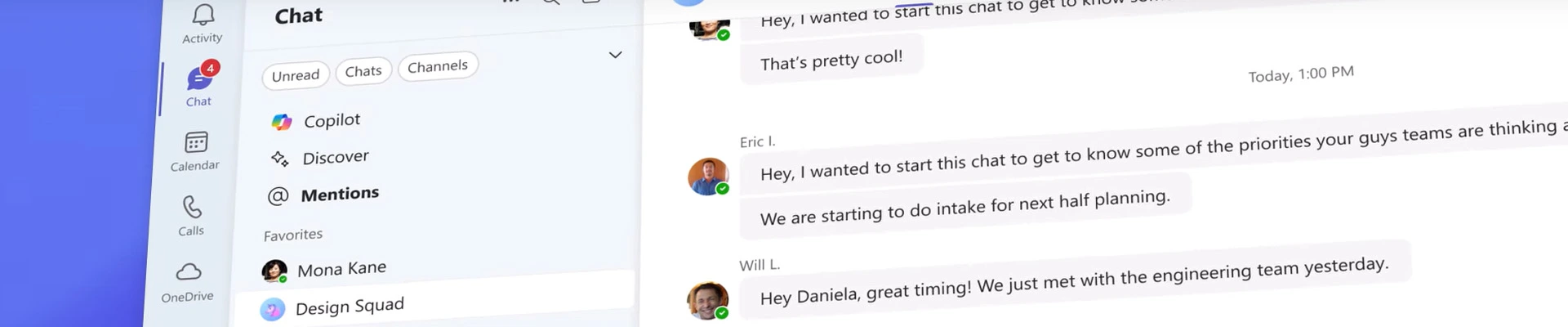
Microsoft Teams goes further in streamlining collaboration and enhancing productivity with its new chat and channels features. The update brings all your chats, teams, and channels into one place, making it easier to manage conversations and stay organised.  

How can Teams’ new features benefit your business? 

Microsoft Teams Simplifies Your Workspace 

The new Microsoft Teams features are designed to simplify your digital workspace and for more effective communication. By integrating chats, teams, and channels into a single view, conversations are easier to access, triage, and organise. You can stay on top of important messages, so nothing slips through the cracks. 

For example, a professional services firm can more easily track discussions about different client accounts. This ensures that no important messages are missed, because all conversations are in just one view. This means better coordination and timely responses to client inquiries. 

Customisable Views to Suit Your Needs 

You can choose to keep chats and channels combined or separate them based on your preferences. This flexibility ensures that you can organise your workspace in a way that works best for you. 

For example, when a construction project manager separates chats and channels by project, they can quickly access updates related to specific project sites. This improves their ability to manage multiple projects simultaneously and helps to ensure that each project stays on schedule. 

Teams’ Message Previews for Quick Access 

Message previews help you stay on top of conversations by showing a snippet of the latest messages. This makes it easier to quickly assess the importance of a message and decide whether it requires immediate attention. 

For example, your HR department can see snippets of the latest messages to quickly identify urgent issues, such as employee grievances or urgent policy updates. They can then respond promptly, enhancing overall employee satisfaction and engagement. 

Save Time & Effort with Copilot Meeting Recap 

The Microsoft Copilot meeting recap feature provides a summary of key points and action items from meetings. This ensures that you can catch up on meetings you missed and stay informed about important discussions. 

For example, a nonprofit organisation can keep track of board meetings using Copilot’s recaps. After each meeting, Copilot can provide a summary of key points and action items. The team can then review these to follow up on important decisions and maintain high levels of organisational efficiency. 

Project Management Made Easy in Microsoft Teams 

Managing multiple projects is also made effortless with Teams. You can organise chats and channels by project, so tracking progress and collaborating with team members are easier. This ensures that everyone is on the same page and that projects stay on track. This includes all team members regardless of location. 

For example, an insurance firm can organise their Teams chats and channels by policy type and client. This allows underwriters, claims adjusters, and customer service representatives to collaborate more effectively, track progress, and address issues in real-time. These can lead to more efficient policy management and better customer satisfaction. 

Improve Client Satisfaction with Dedicated Channels 

By creating dedicated channels for each client, you can ensure that all relevant information is easily accessible. You can also handle client interactions promptly and professionally. These can be crucial for businesses that rely on client interactions. 

For example, a legal firm can create dedicated channels for each client case. This ensures that all communications, documents, and updates related to a case are easily accessible to the legal team. This means quicker client enquiry responses, more efficient case management, and improved client satisfaction and retention. 


Experience Teams’ Elevated & Enhanced Features 

Because your work goes beyond the desktop, so you’ll be thrilled to experience the new chat and channels across all your devices soon. Stay connected and productive wherever you are, whether you’re on desktop, mobile, iOS, or Android. 

Microsoft also announced that Teams will become even more streamlined and user-friendly with upcoming features. You’ll see testing start this quarter, with wider testing in early 2025 and full availability expected by mid-2025. 

Level up your team’s collaboration with Microsoft Teams. Learn more about how it can benefit your business today. 

Discover Microsoft for Your Business